Having trouble connecting your printer?
Stuck on a Wi-Fi router connection?
Can't sync or log in to your email?
Is your computer running too slow?
Stuck on a Windows Update screen?
- All guides are written in very simple, conversational English.
- Linked directly to official Microsoft and Google support documentation.
- Completely free to read with zero signups or software downloads.
- No phone repair lines, sales, or paid tech support plans.
How your computer talks to your devices.
Whenever you connect a printer, mouse, or Wi-Fi router, your computer uses a helper software called a driver to translate commands. Without this connection layer, devices cannot understand computer commands.
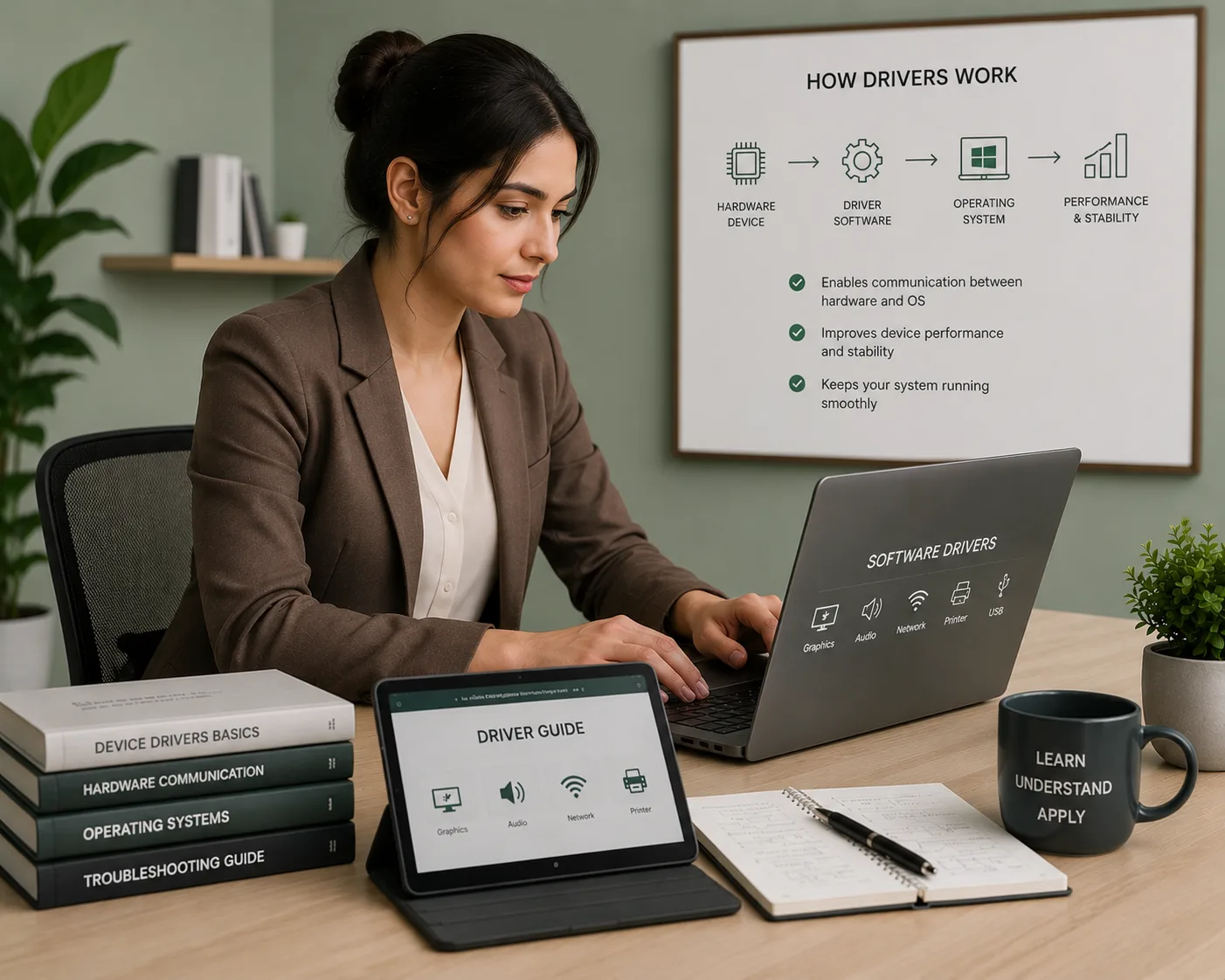
Device communication made simple.
Learn how data and commands move safely from your computer system to hardware like printers, routers, and secure networks.
03
Three simplified steps to understand driver logic.
Educational Only
We offer clear guides. No remote software installs.
You request an action
When you click Print, click a link, or select a Wi-Fi SSID, your operating system initiates a request.
The driver translates it
The driver acts as an interpreter, translating generic OS requests into specific machine codes your hardware reads.
The device performs the task
Your physical printer rolls paper, the router sends wireless packets, or the update screen proceeds successfully.
Select a topic and start reading.
Choose from simple educational guides about printers, drivers, routers, email syncing and Windows update messages.
How to Connect a Printer to Your PC
Connecting a printer to your computer involves setting up the correct physical or wireless communication link. This guide explains how operating systems interface with printer drivers via USB cabling or local Wi-Fi networks. We break down how to manage active print queues, verify default printer configurations, and resolve common device status check delays.
Core Learning Checklist
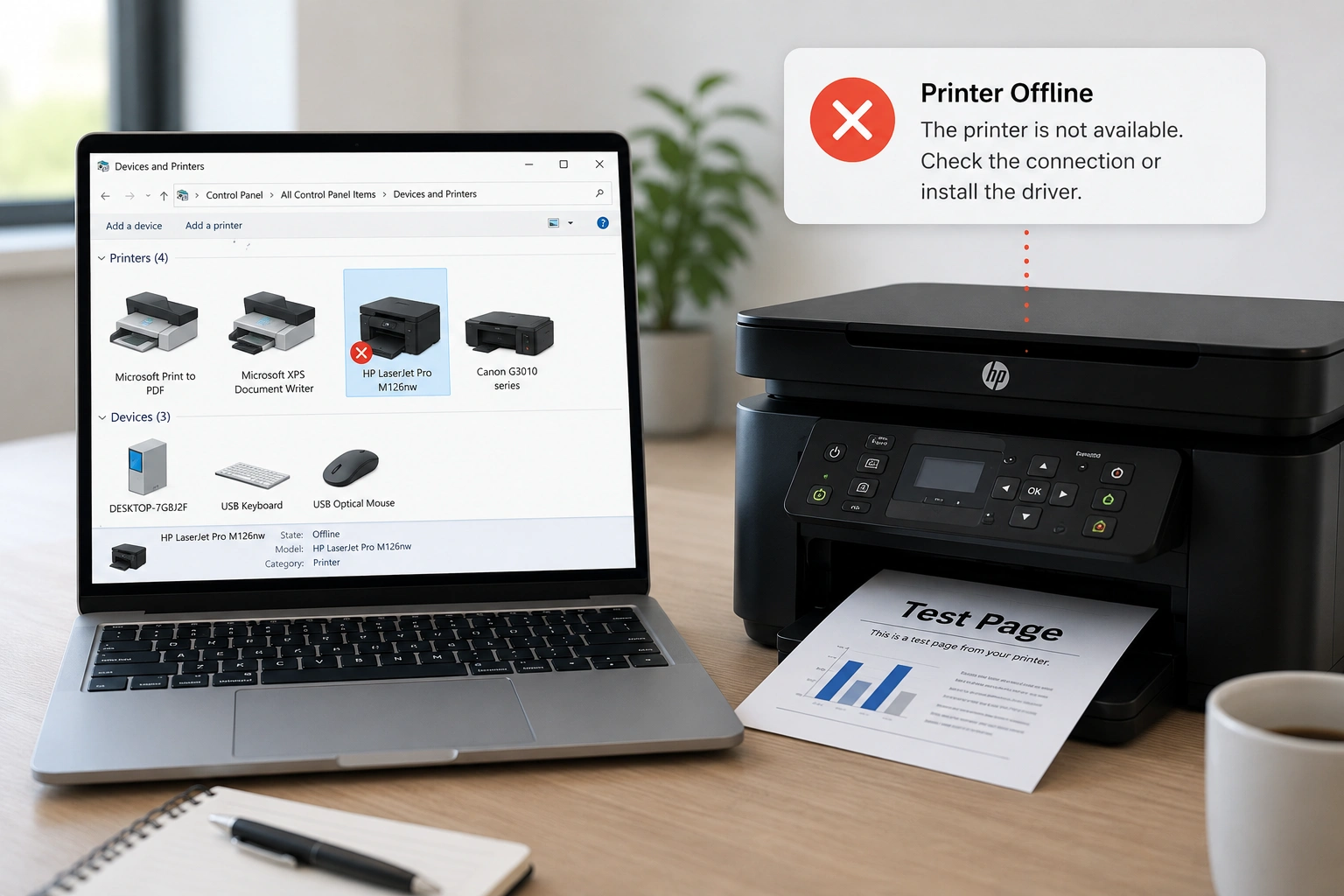
Add or install a printer in Windows
Provided for reference by Microsoft Support
Official Source Docs
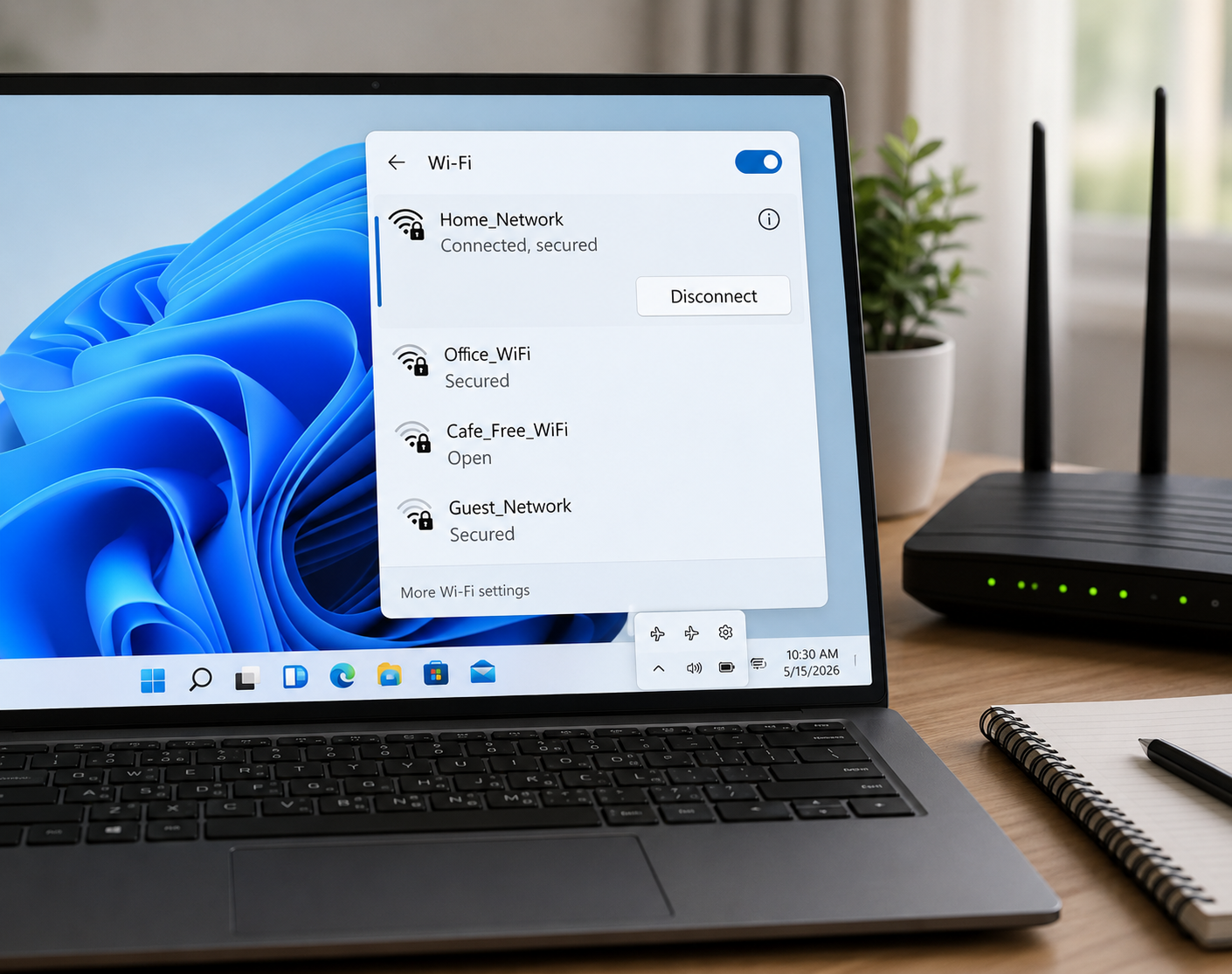
A simple place to learn device basics.
From My Mentor shares easy reading guides about printers, routers, email sync, PC performance, and system updates. We explain device behavior simply, without technical pressure.
Concept-First Explanations
Explanations tailored to explain device purpose before configuration steps.
Simple Vocabulary Only
Keeping jargon to a minimum and using natural, everyday vocabulary.
Direct Official References
Paths pointing to original Microsoft, Google, or official source articles.

Educational Resource Only
We are not affiliated with device manufacturers. All content is compiled for learning purposes only.
Clear answers before you start reading.
Learn what this website provides, how the content should be understood, and where readers can find official documentation for deeper reference.
Notice: This website is an educational resource. No phone numbers, paid troubleshooting services, remote logins, or software repairs are offered on these pages.
How Printer Offline Status Is Usually Understood
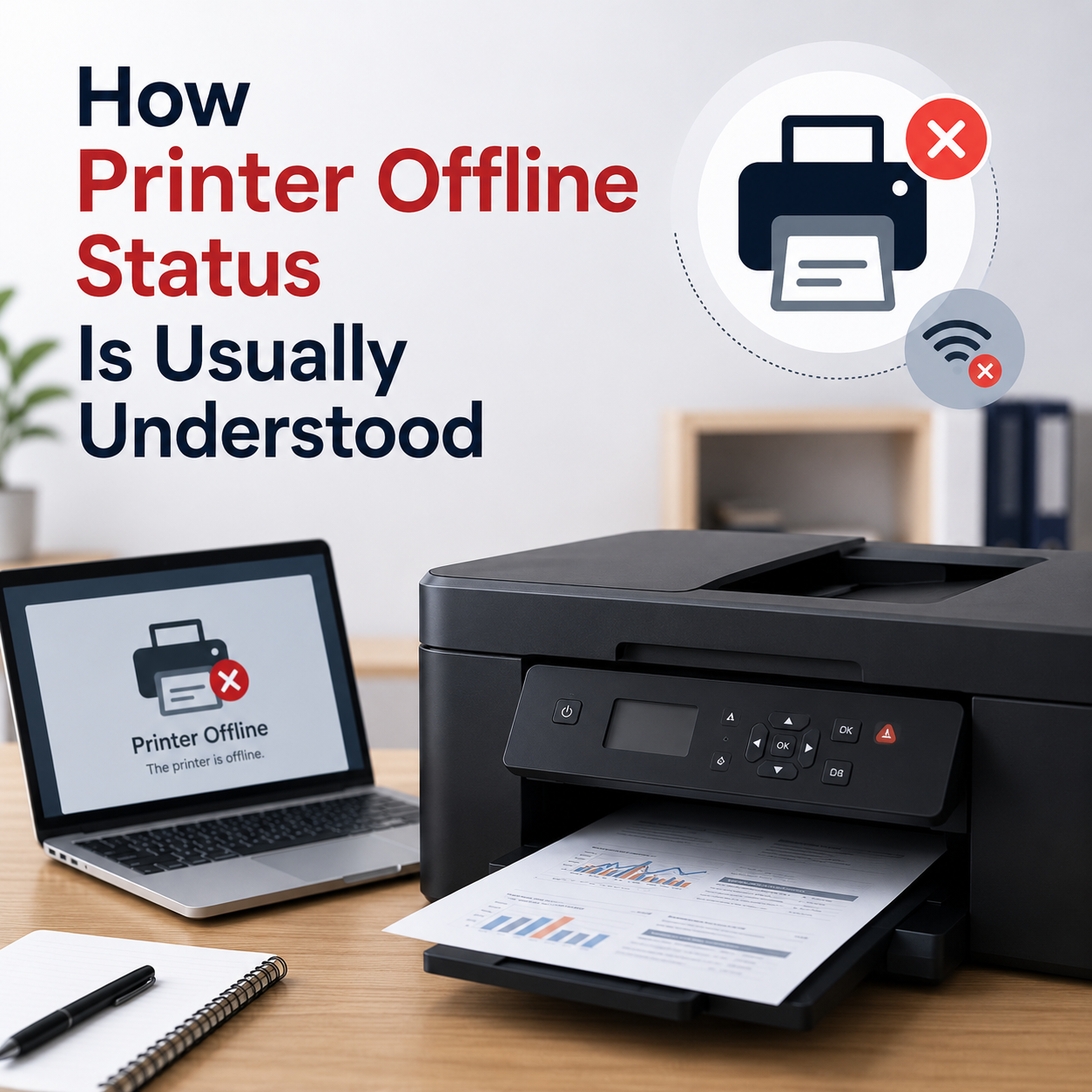
Learn what offline status may mean, how printer queues work, and why connection or default printer settings matter.
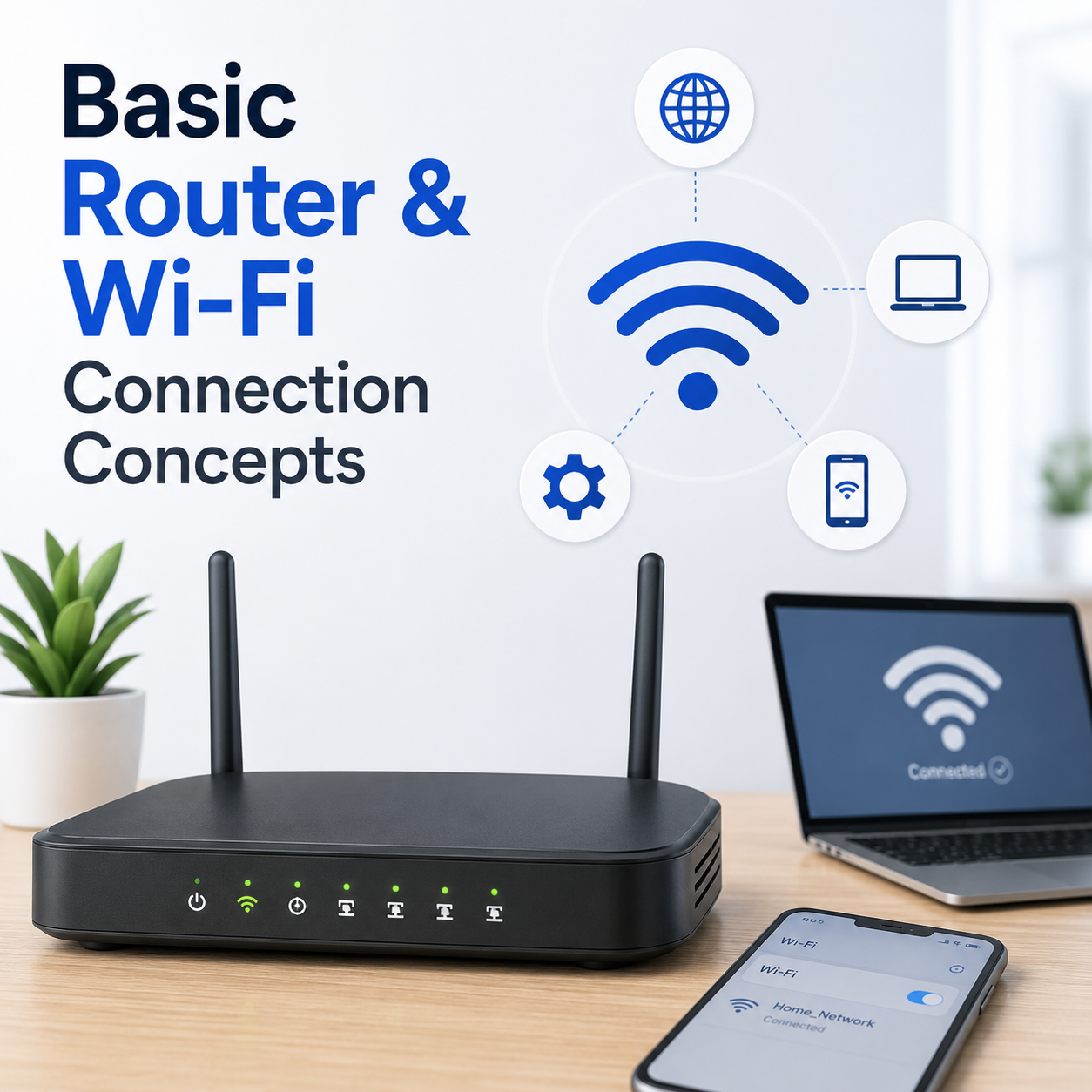
Basic Router and Wi-Fi Connection Concepts
Understand network names, Wi-Fi signals, router lights, connection status, and common limited connectivity messages.
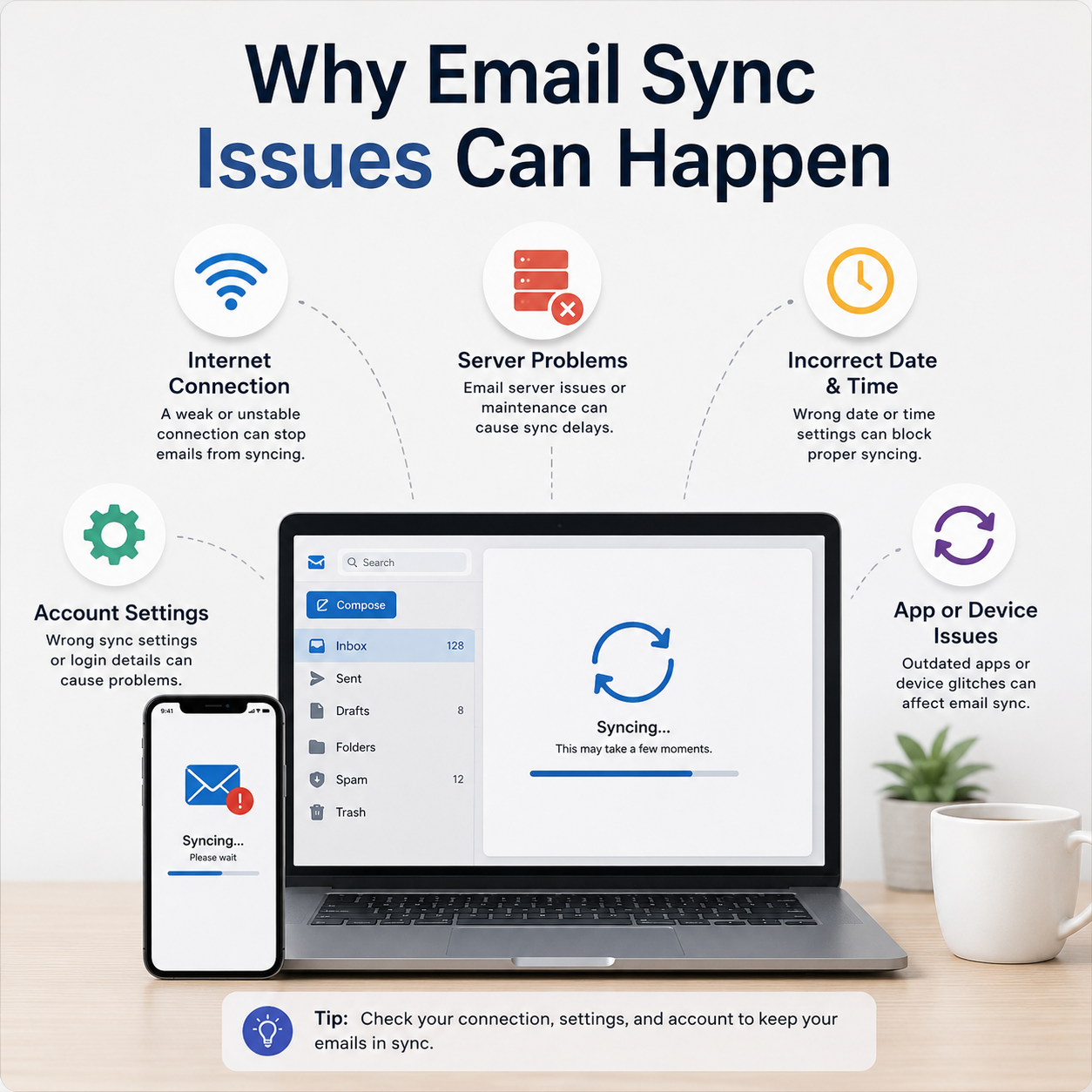
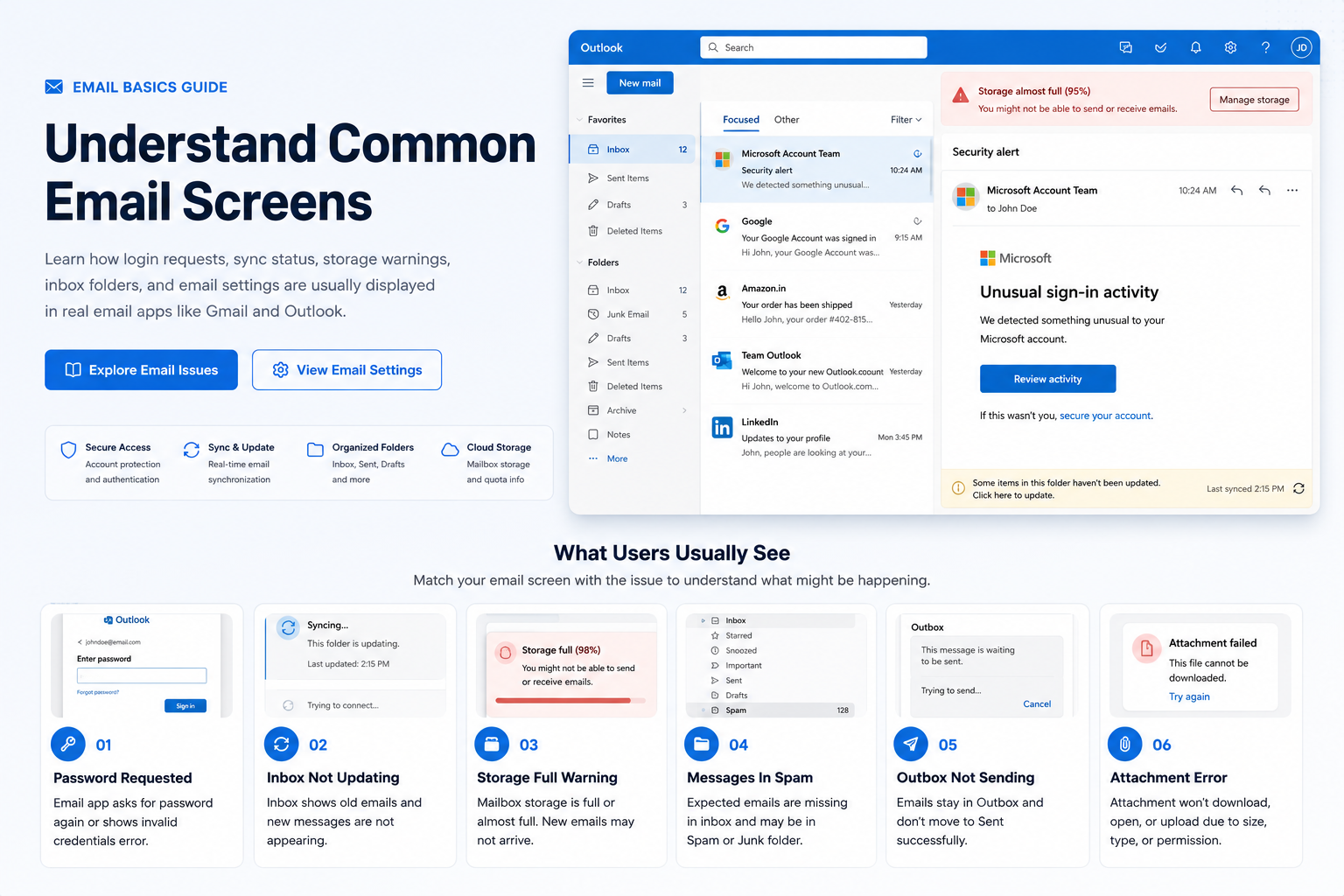
Why Email Sync Issues Can Happen
Read how inbox folders, account access, sync settings, spam folders, and mail app behavior are commonly understood.
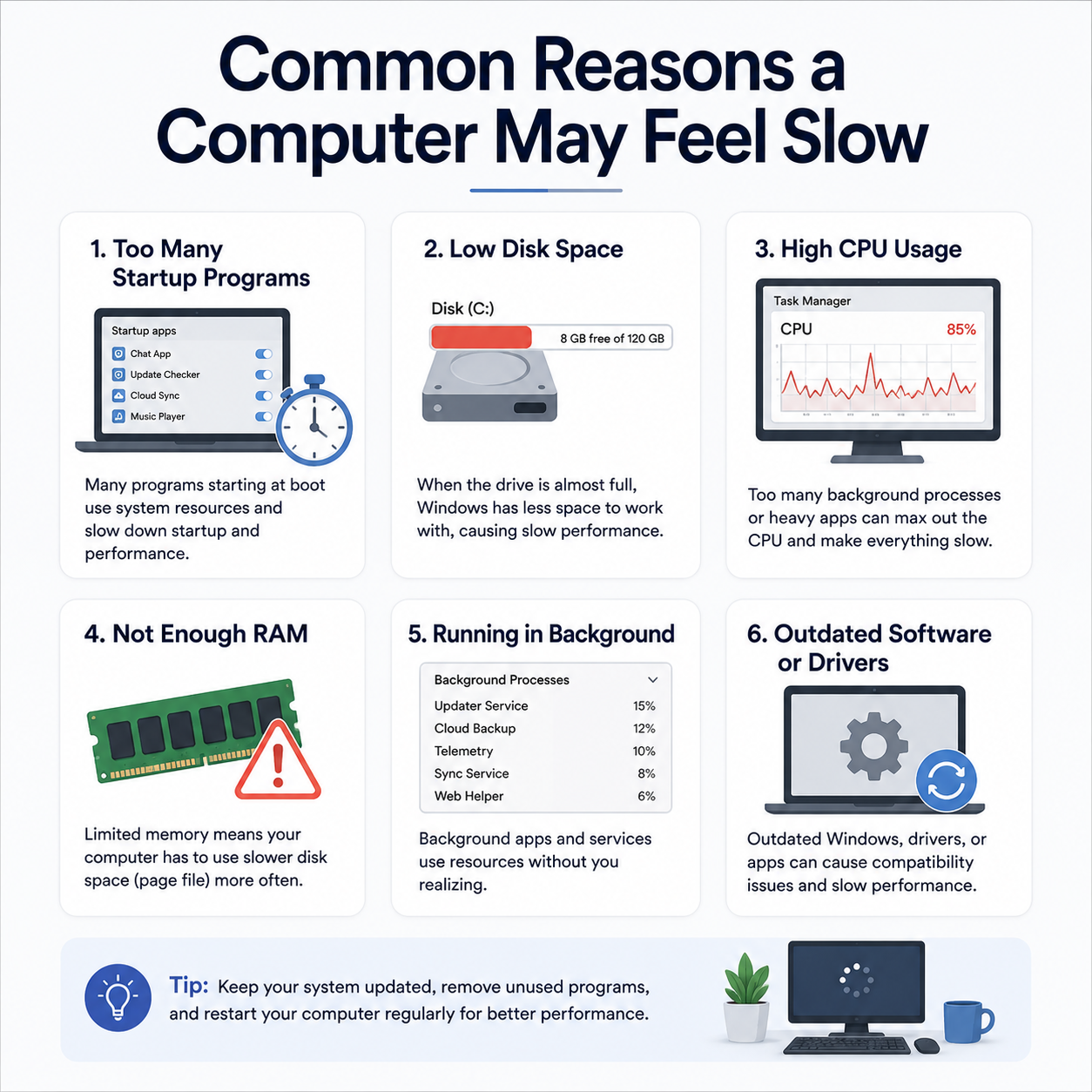
Common Reasons a Computer May Feel Slow
Learn common concepts behind startup items, storage space, background activity, updates, and device driver behavior.
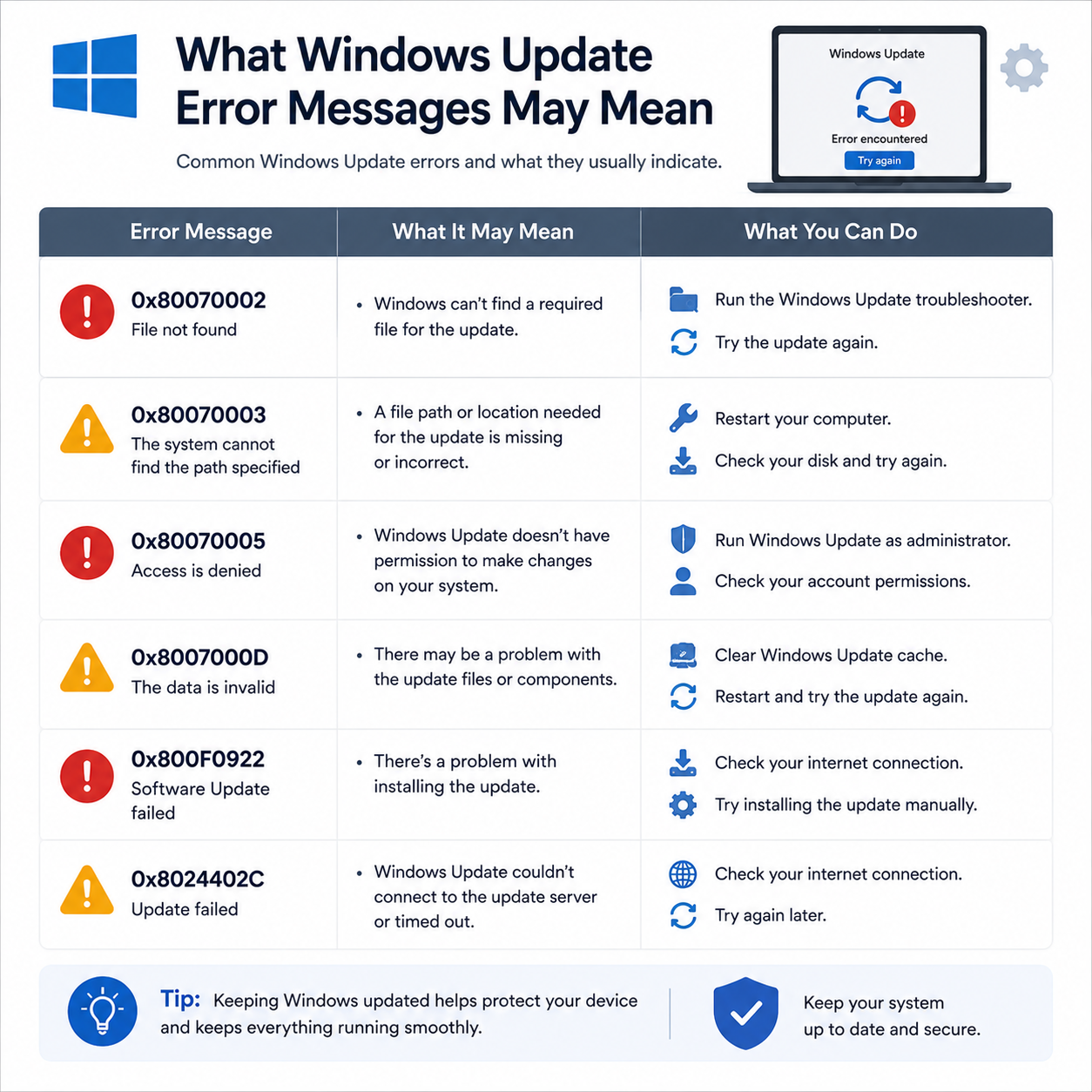
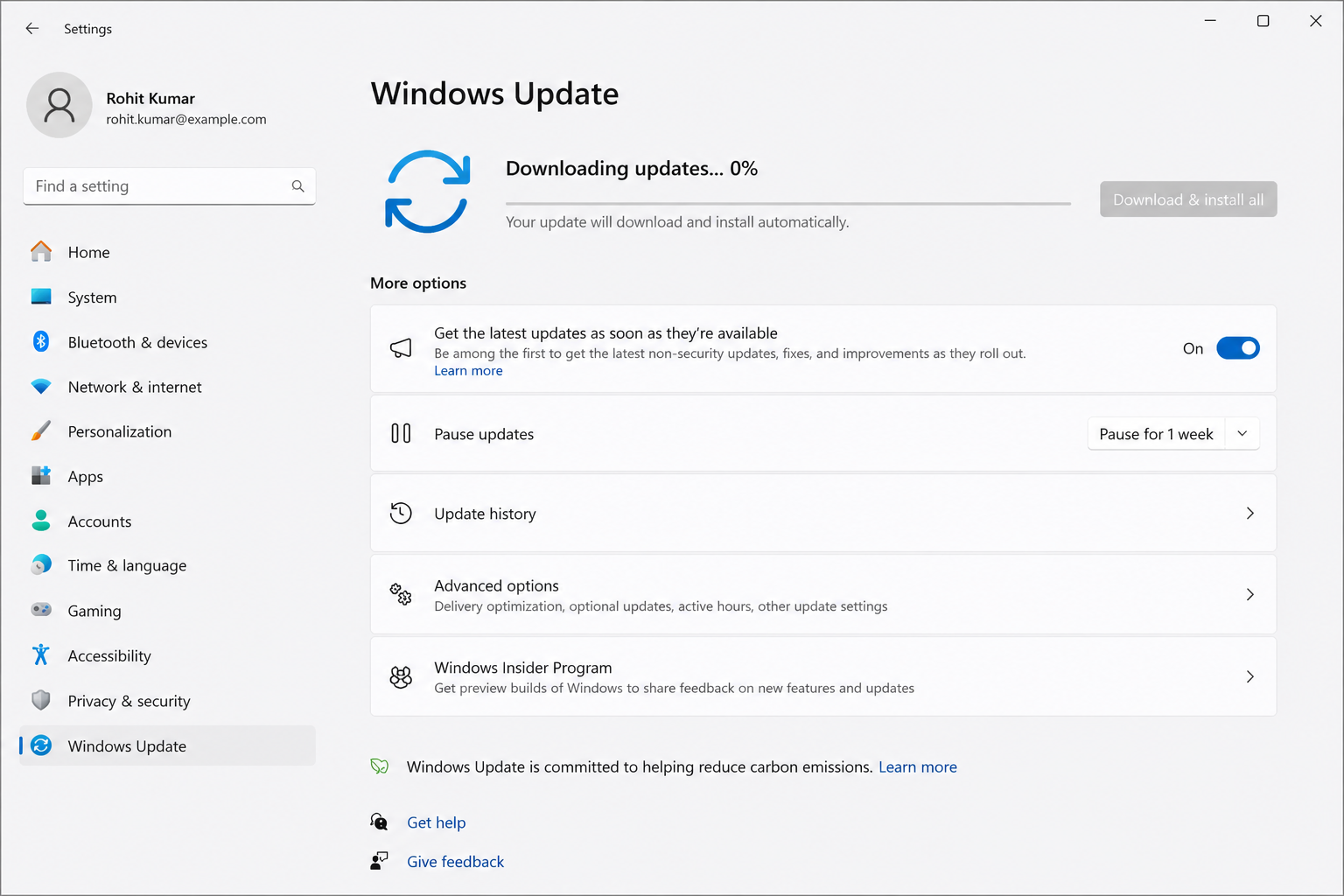
What Windows Update Error Messages May Mean
Understand update status, pending messages, restart prompts, update history, and common update-related terms.
Read practical learning articles.
Explore simple articles about printers, routers, email access, slow computer behavior, and Windows update messages.
Printer Spooler Check Printer
If your printer is stuck in "Offline" status, try restarting the spooler. Press Win + R, type services.msc, right-click "Print Spooler", and click Restart.
Wi-Fi Status Verification Networking
When facing limited connectivity, verify your router's "Internet" or "WAN" LED light status. A blinking orange or solid red light indicates external signal line dropouts.
Mail Sync Protocol Email
Sync errors are usually caused by password changes or wrong SMTP/IMAP ports. Verify SSL settings (typically Port 993 for IMAP, Port 465 or 587 for SMTP) inside your mail client.
System Startup Optimization Performance
To speed up boot-times, open Task Manager (Ctrl+Shift+Esc), select "Startup Apps" (or Startup tab), and disable applications with high startup impact.
Update Trouble Clearing Update
If update download fails with an error code, search Settings for "Troubleshoot settings", select "Additional troubleshooters", click "Windows Update", and run the automated tool.
All materials are compiled for awareness. We do not provide phone support or repair installations.